BLOG
TiviOne M3U Playlist: 6 Simple Steps to Set It Up Right
Aug
TiviOne M3U Playlist: 6 Simple Steps to Set It Up Right in 2026
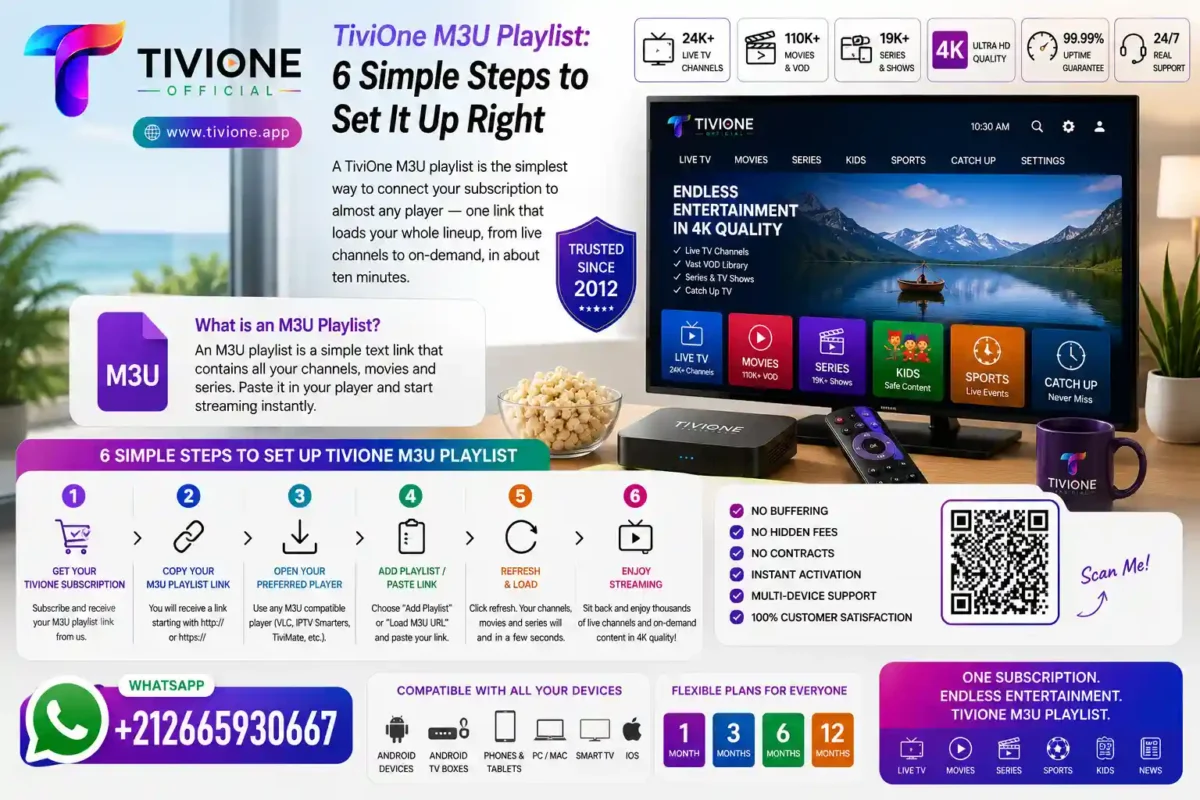
A TiviOne M3U playlist is the simplest way to connect your subscription to almost any player — one link that loads your whole lineup, from live channels to on-demand, in about ten minutes.
M3U is an open, widely supported format, which is exactly why it is so convenient. This guide explains what a TiviOne M3U playlist is and walks through connecting it, step by step, so a first-timer can be watching tonight.
What Is a TiviOne M3U Playlist?
An M3U playlist is a standard file format that tells a media player where to find a set of streams. A TiviOne M3U playlist simply points your player at your Tivione Internet Protocol television subscription.
Instead of adding channels one by one, the playlist loads your whole lineup at once — live channels, the video on demand library and catch-up — all delivered as streaming over your internet line.
Because M3U is an open standard, it works in a wide range of players, including well-known apps such as the VLC media player, giving you plenty of choice in how you watch.
Why the M3U Format Is So Convenient
The big advantage is compatibility. A playlist link works across many devices and apps, so you are not tied to a single piece of software — set it up once and reuse it wherever you like. That freedom of choice is a big part of why the format has stayed popular for so long.
It is also effortless to maintain. When your lineup updates, the playlist reflects it automatically, so you never have to re-add channels by hand — the list simply stays current on its own. With adaptive bitrate streaming, quality climbs to 4K on capable screens and stays smooth when the network dips.
And it travels: the same subscription covers viewers across France, Germany, the Netherlands, Belgium, the UK and beyond, on a family-safe catalogue with no adult channels. Whether you watch at home or away, your playlist behaves exactly the same on every player you use.
6 Simple Steps to Set Up Your TiviOne M3U Playlist
1. Activate Your TiviOne Subscription
Message us to get started. Within minutes you receive your access, including your personal TiviOne M3U playlist link, ready to paste straight into your player.
2. Choose a Compatible Player
Pick any player that supports M3U on your device — a smart TV app, an Android box app or a desktop player all work.
3. Open the Add-Playlist Option
In your player, find the option to add a playlist or an M3U URL. It is usually one tap from the main settings menu, clearly labelled in most apps.
4. Enter Your TiviOne M3U Playlist Link
Paste in the playlist link from your welcome message. Enter it once and the player saves it for next time.
5. Let the Playlist Load
Give it a moment on first launch. The player reads the TiviOne M3U playlist and fills in your channels, on-demand library and catch-up automatically.
6. Set Quality and Add Favourites
Match the output to your screen — 4K on a capable TV, native resolution on a phone — then star your favourites so they are one tap away every evening. From here, the player simply remembers your playlist and your preferences.
Practical Guide: Tuning and Support
A few small habits keep your TiviOne M3U playlist running flawlessly on any device:
- Check your bandwidth. A quick test on Speedtest confirms your ceiling — 10 Mbps for HD, 25 Mbps or more for 4K.
- Go wired or use 5 GHz Wi-Fi. On the main TV, a cable removes wireless variability; on mobile, the faster band cuts interference.
- Keep the player updated. Installing updates as they arrive keeps playback smooth and the interface responsive.
- Keep your link private. Your playlist link is personal to your account, so treat it like a password and do not share it.
If a question comes up mid-setup, our team is one WhatsApp message away and happy to walk you through it on each of your devices, step by step. Most people are watching on their first evening, and once the playlist is saved there is nothing left to configure.

Frequently Asked Questions
What is a TiviOne M3U playlist exactly?
It is a single link in the standard M3U format that points your media player at your Tivione subscription, loading your whole lineup — live channels, on-demand and catch-up — in one step.
Which players support the M3U format?
A wide range, since M3U is an open standard. Smart TV apps, Android box apps and desktop players all work, including well-known apps like the VLC media player.
How long does setup take?
About ten minutes. The six steps above are beginner-friendly, and a guided walkthrough comes with your welcome message.
Can I watch in 4K with an M3U playlist?
Yes, on a 4K-capable screen with around 25 Mbps of bandwidth. Quality adapts automatically to the best your device and connection can deliver.
Is this service legal?
Tivione is a neutral technical platform that provides access to streaming technologies. The service does not store, host or distribute any copyrighted files and operates in compliance with the laws applicable in its jurisdiction. Users are solely responsible for the content they choose to access and must comply with the legislation in force in their country of residence.
Where do I get my TiviOne M3U playlist link?
It arrives within minutes of activation. Message +212 665-930667 on WhatsApp or use the contact page on tivione.app to get started.
Can I use the same playlist on more than one device?
The playlist link is tied to your account, so you can set it up on your devices. For details on simultaneous viewing, reach out before signing up.
What if the playlist will not load?
Double-check the link is entered exactly, confirm your connection on Speedtest, and keep the player updated. Support can help directly if it persists.
Is the catalogue family-safe?
Yes. No adult channels exist in the catalogue, so every screen in the household stays safe by default.
One link, your whole lineup, on almost any player — that is the beauty of a TiviOne M3U playlist. Message us to activate your subscription or visit https://tivione.app/, follow the six steps, and start watching tonight.
